
Before you install an APK, you need to know about its permissions. This article covers how to check the permissions of an app, copy it to another location, and Sideload it from unofficial sites. Getting started with Sideloading apps is easy, as long as you follow these steps.
Installation of the app
To install an APK file, you must first navigate to the downloads folder on your Android phone. Next, open File Explorer on your phone and locate the APK file you just downloaded. This file will be located in the /sdcard/downloads folder. Tap the file and install it. The app will then be installed on your Android phone.
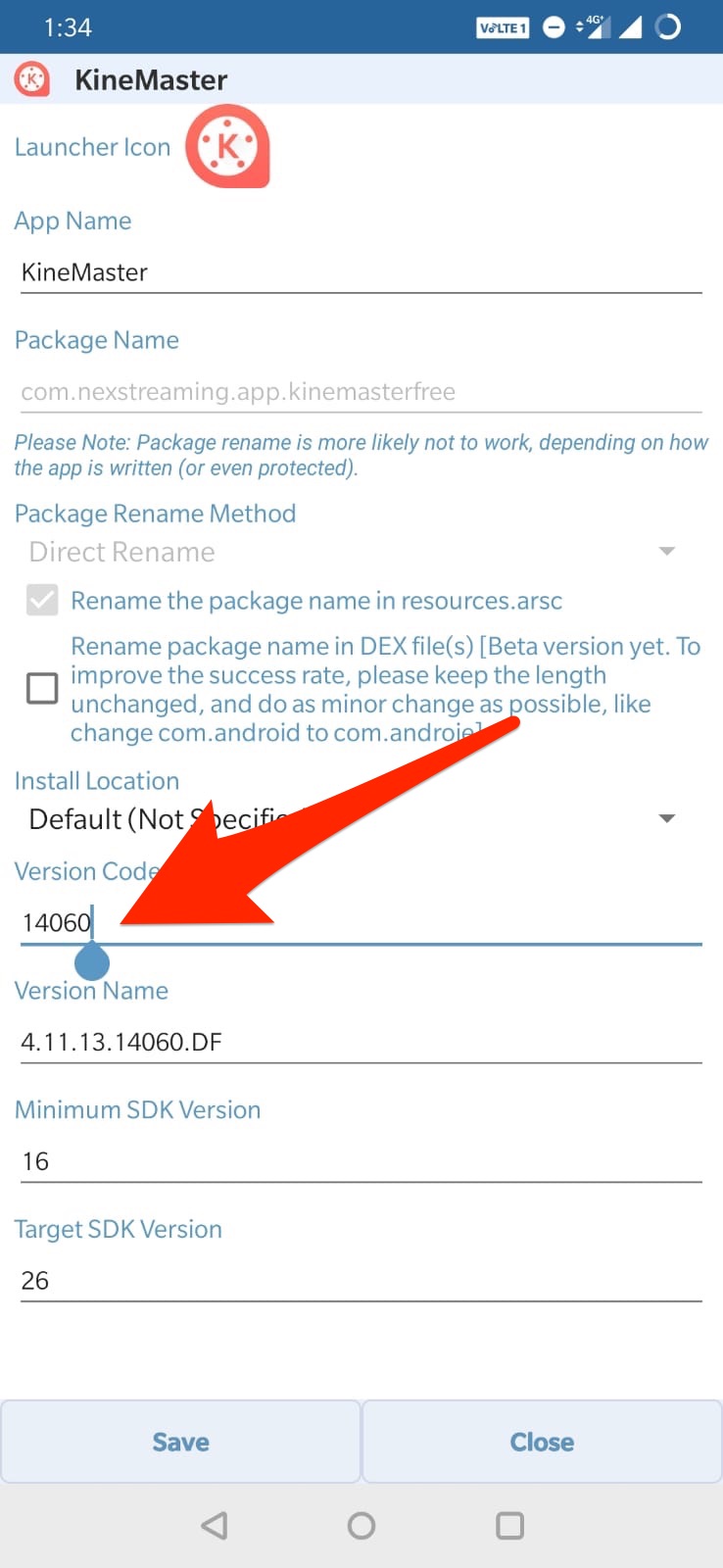
When installing and check out APK Files, you must make sure you are downloading from reputable sources. A quick Google search will reveal if a website has a questionable reputation. Once you have downloaded an APK, open it in the file explorer app and allow the necessary permissions. Then, tap on Install to install the app.
If the installation fails, you can try installing the app from your computer. First, you need to enable the USB debugging mode on your Android device. Once you have done that, connect your device to your computer. The computer will mount your phone just like a memory stick. You will then be prompted to confirm the installation of the app.
Checking app permissions
Before installing any app on your device, you should check its permissions to ensure that the app is safe for your device. The Android system classifies permissions into “normal” and “dangerous” permissions. The former is permitted by default, while the latter requires you to explicitly grant permission. Dangerous permissions include those involving access to your camera, microphone, location, and private messages. These permissions may be used by malicious developers or for illicit purposes. It is therefore essential to check the permissions and the developer’s reputation before installing an APK on your device.
To check app permissions, go to the app’s permissions page or to the All permissions page. In the permissions page, look for the “Storage” section. Here, you’ll find a list of permissions the app has received. It may also request permission to read and modify the contents of your shared storage. If you’re unsure about the permissions, you can tap each permission to view more information.
While some apps are designed to operate with a restricted set of permissions, other apps rely on those permissions to function properly. For instance, an Instagram app without camera access will not be able to take new pictures. However, this does not mean that the app doesn’t work; it could be a case of the app developer not accounting for the permissions of the user.
Copying the app to another location
If you’re looking to install an APK on multiple devices, copying the app to another location is an option that you should consider. This feature is available on certain Android devices, including the Xiaomi Mi A1, OnePlus One, and Samsung Note 4. You can also use third-party applications such as Parallel Apps. To turn this feature on, go to Utilities>Apps and tap the Parallel Apps button. This will show a list of supported apps. Once you’ve selected the desired apps, tap the toggle to the On position.
Next, make sure to enable USB debugging on your device. Then, connect your Android phone to the computer using a USB cable. The computer will mount your phone like a memory stick, and you can then install the APK file. If you’re not able to see the APK file on your computer, it may not be installed properly.
When installing an APK, you should first check whether it’s installed to the internal or external storage. If the application uses a feature that is only available on the internal storage, it should not be installed to the external storage. You can also explicitly state that the application should be installed to the internal storage.
Sideloading apps from unofficial sites
When installing an APK, sideloading apps is possible on Android devices only. However, sideloading apps on an iOS device is not possible. You have to be careful because it is a very risky process, and there are many potential risks. Not only can sideloading apps void the warranty of your phone, but they may also expose it to malware and other data-stealing threats. To protect your phone from such risks, consider installing the app on an older device.
To download unofficial applications, you must first enable the Unknown Sources setting in the settings of your device. This setting is located under the Security menu. Enabling this feature will prevent malicious apps from infecting your device. Also, you must check the nature of the application before downloading it. You can also use an application like ApkPure to avoid infections.
Although sideloading apps is safer than installing apps from official stores, you should still follow the instructions carefully. You may end up bricking your device if the application contains malicious code. To avoid this situation, download apps from official app stores only if they have been approved by Google.